
Getting ledak on Your Device
Installation Steps
-
1
DownloadChoose your platform
Select Android APK, iOS browser link, or open ledak.bet in your mobile browser to access the web app directly.
-
2
Install or AddComplete the setup
On Android, grant permission to install from unknown sources and tap the APK file. On iOS, add the bookmark to your home screen via the share menu. Web app requires no installation.
-
3
Register or LoginCreate or access your account
Open the app and either create a new ledak account or sign in with your existing credentials. You will need email verification and a valid phone number.
-
4
Complete KYCVerify your identity
Upload your government ID and proof of address. Once verified, you can deposit via DANA, e-wallet, mobile banking, or other supported payment methods and start playing.
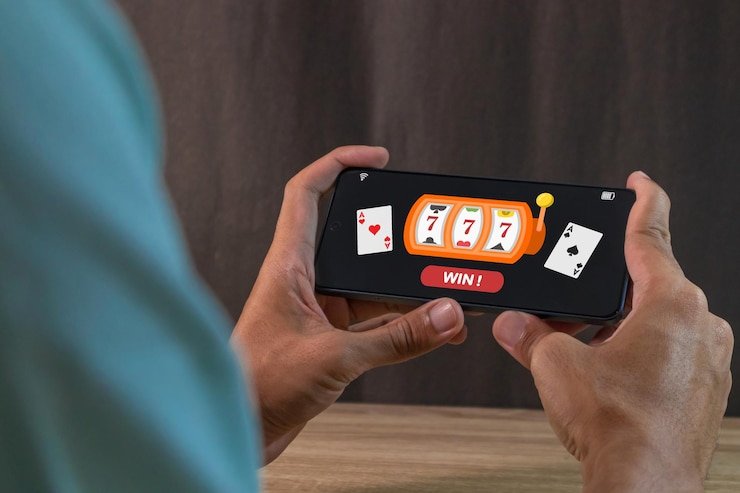
App vs. Browser: Which Should You Use?
We at ledak recommend the mobile app if you use ledak several times a week. The Android APK includes offline cache: once you load a roulette or blackjack table, the game graphics stay stored locally so reconnection is faster if your signal drops. Push notifications alert you to live-football match starts, settlement results, and account messages without opening the browser. The app also manages battery more efficiently during long play sessions.
The web app suits occasional users or those on devices with limited storage. ledak's responsive design adapts to any screen size—no download required, no permissions to grant, and instant updates mean you always have the latest features. Both paths use the same account, KYC, and payment integration, so switching between them does not interrupt your balance or betting history.
Device Compatibility
Our ledak Android app requires Android 7 or later; most devices from 2015 onwards meet this requirement. The iOS add-to-home-screen flow works on iOS 12 and later, covering iPhones and iPads released. The web app runs on any modern browser—Chrome, Safari, Firefox, Edge—regardless of operating system version. If your device is older, the web app is your best option; if you hit compatibility issues, contact our support team for guidance.
Troubleshooting Common Installation Issues
On Android, if you see "Unknown source" warnings, check your Settings → Apps & notifications → Install unknown apps, then enable ledak or your file manager. If the APK fails to open, your device may be missing a certificate authority; download the latest version from our app page and try again. On iOS, if the home-screen icon does not load quickly, clear your Safari cache and re-add the bookmark. On any device, if tables or payment pages fail to load, restart the app or browser, clear cache, and check your internet connection. Persistent issues should be reported to ledak support with a screenshot of the error.
Data, Permissions, and Account Security
We at ledak request minimal permissions on Android: internet access, storage (for cache), and notification rights. We do not access your camera, location, or contacts. All data transmitted between your device and our servers uses encryption; your username, password, and payment details are never stored on your phone in plain text. Two-factor authentication protects your account even if someone gains device access. If you lose your phone, log out from any other device using the "Logout all devices" option in account settings, then reset your password. Withdrawal requests require identity verification and are subject to review windows to prevent fraud.

Low-Data Streaming and Performance
Streaming live-dealer video consumes the most data on mobile. ledak's app adjusts video bitrate automatically: on slow connections, the stream quality drops to 720p or lower, reducing data use by 50–non-specific info compared to 1080p. You can also manually toggle low-data mode in settings. Slot games and markets use far less bandwidth than video, so switching to Aviator, Gates of Olympus, or Liga 1 fixtures saves data if you are on a metered plan. During Idul Fitri or Idul Adha holidays when usage spikes, our servers prioritize stability over resolution, ensuring tables stay accessible even if streams are temporarily reduced in quality.